
Browse all guides
ARRANGE & STYLE
Looks
Make a layer look different when a condition is true.
In this guide
Give a piece another appearance for certain times#
Suppose you want a weekend label to appear only on Saturday and Sunday. Or you want a battery value to change color below a level you choose. A Look stores that alternative appearance and the rule for when to use it.
It works on the same piece of your widget; you do not need another widget design. Normal is its usual appearance. A Look takes over when its rule matches. The rule is called a condition in these instructions.
Open a saved widget in Library, tap Design Visually, select the piece, and tap Looks in the toolbar. Use When data changes for values, times, or weekdays. Use On some sizes for an appearance tied to a widget size.
Add a Look#
Open Looks
Select a layer and tap Looks → When data changes.
Choose a starting point
Use one of the offered starts, or Start from scratch. The starts depend on the selected layer.
Set When
Tap the words in the condition to choose what to check, how to compare it, and the number or time to compare against.
Set What changes
Choose what should change, such as color or visibility. Open the offered tool to edit that change.
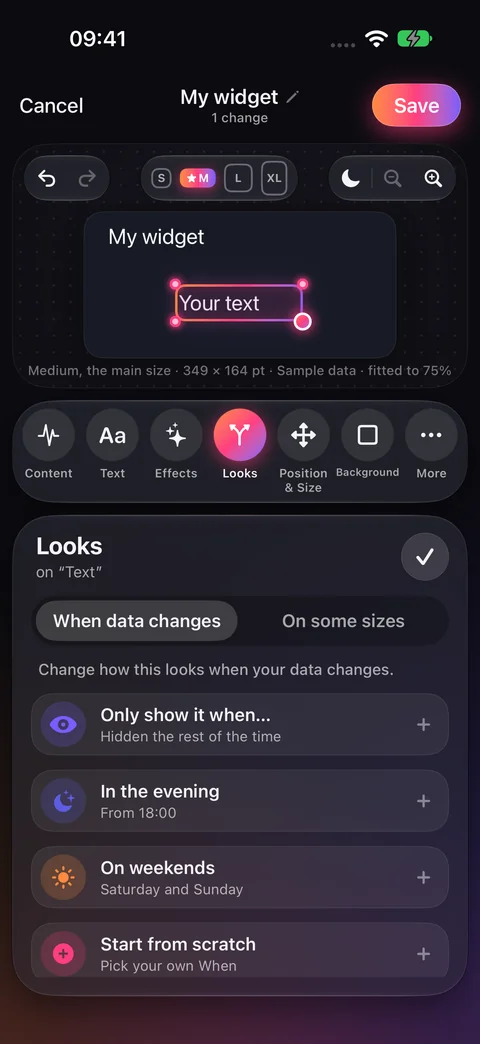
Set the condition#
The When sentence is editable. Tap its data name to open the picker, its comparison to choose how it is checked, and its number or time to change what it is compared against. The controls depend on the field.
You can add another condition with And also. All conditions in the Look must match.
Choose what changes#
What changes lists the changes for this Look. Edit through its offered tools while the Look is open. Use its visibility switch to hide or show the layer in that Look.
Layout settings are not all available in data Looks. The app tells you when a setting stays the same in every Look. Use a size Look for supported changes tied to a widget size.
Put Looks in order#
The app tries data Looks from top to bottom and uses the first one that matches. If none match, it uses Normal. To change that order, select the layer and open Looks → When data changes. Use the up and down arrows beside the Look cards. Those arrows appear when there is more than one Look. Move a Look up if it should take priority.
A preview of an edited Look helps you design it. It does not mean its condition currently matches your own data.
Rename or delete a Look#
Select the layer, open Looks → When data changes, then tap the Look card. Scroll inside the panel to the name field beside the pencil and Delete look button. Tap the name to edit it. Deleting a Look removes that rule; it does not delete the layer. Save the widget to keep the changes.
Checked against the app · October 6, 2026.
Screenshots use example data or the app’s test image.