
Time range
Choose the period to show. Steps offers Today, Yesterday, This week, Last 7 days, and This month. Other values have their own supported ranges.
THE VISUAL EDITOR
Add steps, temperature, battery level, or another value to your widget.
Imagine a widget showing how far you have walked today. If you type “6,410 steps” as ordinary text, those words stay the same until you edit them. If you add Steps through Live Data, the app fills in the number from your Health data when it draws the widget.
That is what “live” means here: the words or number come from a chosen value, rather than something you type. The value might be today’s steps, the temperature, your battery level, or your next event. It still appears as text on the widget, so you can choose its font, color, and size.
Use Live Data when you want one value. For separate entries, such as a step count for each of the past seven days, use a list. To show the pattern as bars or a line, use a chart. Home Screen widgets refresh at intervals; “live” does not mean they update every second.
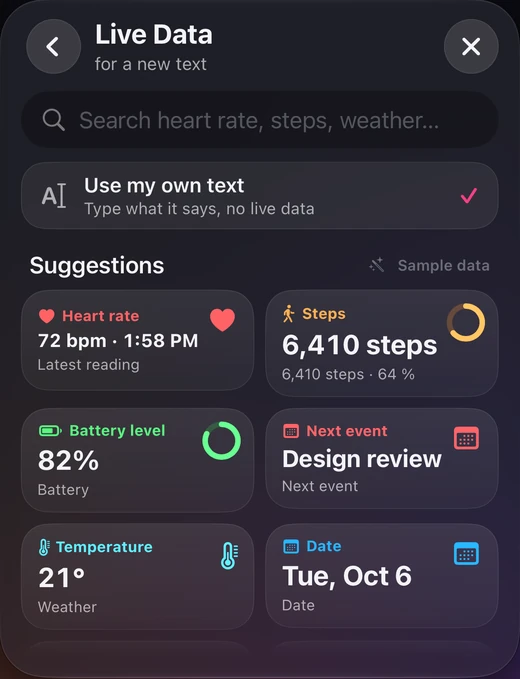
Search by name, choose a suggestion, or browse a category.
The categories are Date & Time, Health, Weather, Calendar, Reminders, Device, and Location.
Open a saved widget in Library, then tap Design Visually. If you have not made a widget yet, start with a Gallery design.
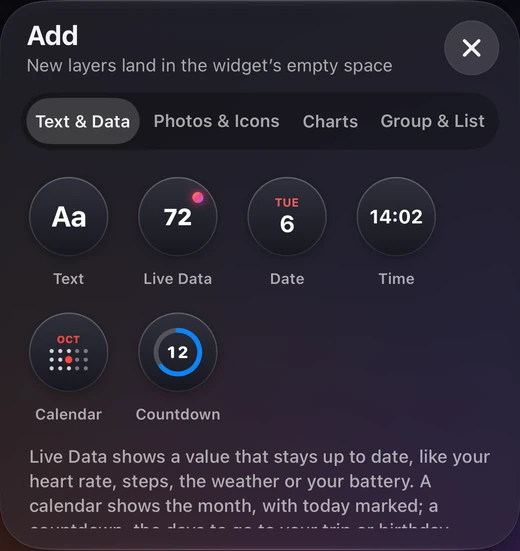
Tap the empty canvas outside the widget preview to leave any selection. Then tap Add in the toolbar below the preview. Under Text & Data, tap Live Data.
Choose Steps from Suggestions, or search for steps.
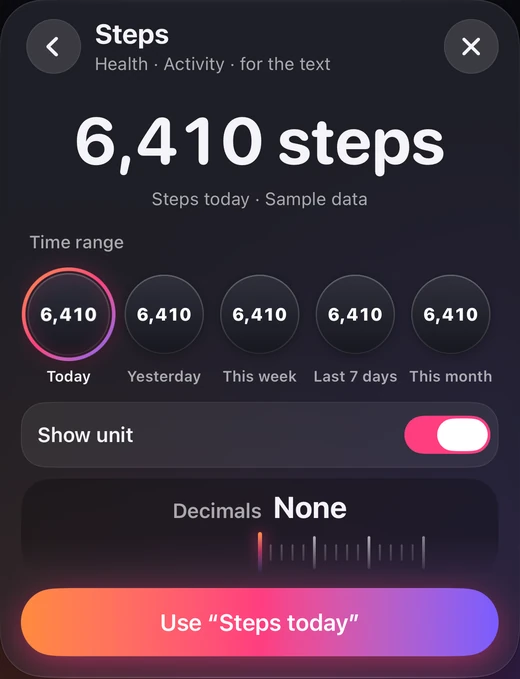
Choose Today. Leave Show unit on if you want “steps” after the number.
Tap Use “Steps today”. The step count appears as a new piece of text on the widget. Select it and open Text to change its font or color. Tap Save at the top to keep your changes.
Sample data shows example values. Turn it off to see your own data.
These controls appear after you choose a value in the Live Data picker. For Steps, they are on the same screen as Use “Steps today”. Choose the period and appearance before tapping Use. Scroll inside the picker if a control is below the visible area.
The options depend on the value. Temperature does not offer the same periods as Steps; a reading with a measurement time can offer an extra switch.
Choose the period to show. Steps offers Today, Yesterday, This week, Last 7 days, and This month. Other values have their own supported ranges.
For values with a unit, choose whether it appears with the number. Steps can show “6,410 steps” or just “6,410”.
Some readings let you include their measurement time. The “Show when it was measured” switch appears when that option applies.
For numeric values that support it, drag the Decimals ruler to choose how many digits appear after the decimal point. None shows a whole number.
Tap the number or words on your widget to select them, then tap Content in the toolbar below the preview. Under What it shows, choose Live data. For a layer already using live data, tap Change to reopen the picker and choose another value or range.
To return to text you type, choose Your text in Content. In the Live Data picker, Use my own text also removes the live-data choice.
Sample data helps you try a design with example values. Tap the empty canvas outside the widget preview to leave any selection. The toolbar then has a Sample data button; you can also change it in More → Sample data.
Turn it off to preview your own data. Health, Calendar, Reminders, Weather, and Location values may need access. If the app offers Allow, use it and follow the system prompt. If it offers Settings, review access there. Weather uses location access.
A missing value is different from zero. A source can have no reading for the chosen period, even when access is allowed. Try another time range or check the source app for that data.
Check whether Sample data is on. Turn it off in the editor’s dock, or in More → Sample data, to preview your own values. The screenshots in this guide intentionally use sample data.
Check the access controls offered by the app, then check whether the source has data for the range you selected. Health readings depend on what is recorded in Apple Health. A value can be missing if no reading is available.
Controls appear only when they apply. Time ranges come from the selected field; units, measurement times, and decimal controls are shown for values that support them.
Use applies the live-data choice to the editor’s draft. Tap Save at the top of the visual editor to save your widget to the Library.
Screenshots show sample data.
Guide checked against the app on October 6, 2026.