
Browse all guides
ARRANGE & STYLE
Groups & arrangement
Keep related things together, then tell them how to line up.
In this guide
Move related pieces together#
Suppose you want a calendar icon beside the words “Next event”. A group holds those two pieces together, so you can move the pair as one and keep their spacing consistent.
An arrangement tells the pieces inside the group where to go: next to one another, underneath one another, or overlapping. You choose that arrangement instead of positioning each piece separately.
Open a saved widget in Library, then tap Design Visually. Grouping does not connect the pieces to new data. It changes how existing pieces are kept together and laid out. A list serves a different purpose: it repeats a design for separate events, readings, or days.
To find Add, tap the empty canvas outside the widget preview to leave any selection. Add appears in the toolbar below the preview. Once you add a piece, select it to open its own tools.
Make a group#
Tap Add → Group & List → Group to add an empty group. Use Add to group to put layers inside it.
To group existing layers, open Layers → Select, pick layers in the same place, then tap Group them.
Choose an arrangement#
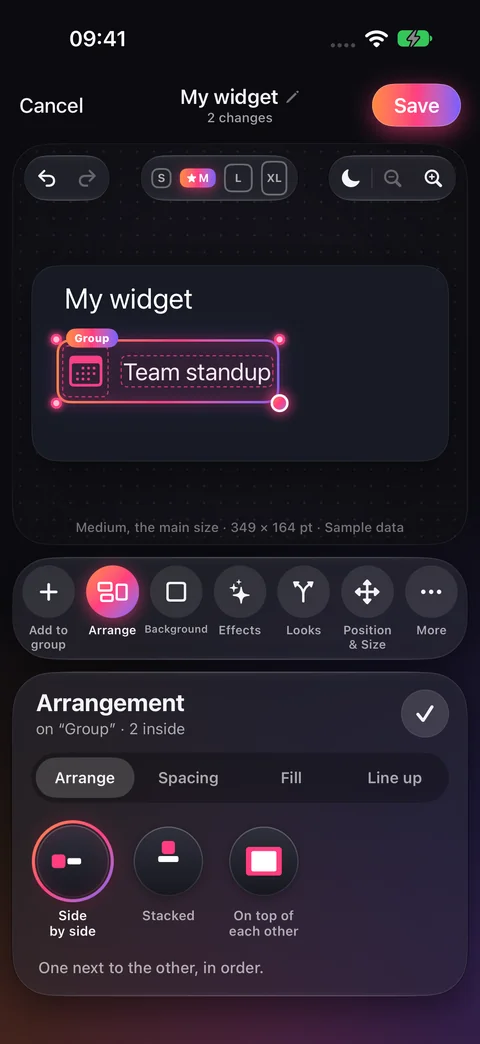
Select the group and tap Arrange. In the Arrangement tray, choose:
- Side by side
- Put the layers next to each other.
- Stacked
- Put one layer below the next.
- On top of each other
- Overlap the layers. The first is at the back.
Set spacing and alignment#
Select the group and tap Arrange in the toolbar. Inside its Arrangement panel, use these buttons:
- Spacing
- Open Arrange → Spacing. Drag the Spacing ruler to change the gap between pieces. Choose Room inside above the ruler to add space at the edges of the group. A side-by-side group also offers Dots between, like “10:00 · Room 4B”.
- Fill
- Open Arrange → Fill to choose how the pieces share the available width or height. This control does not apply to overlapping pieces.
- Line up
- Open Arrange → Line up. For side-by-side pieces, this sets where they sit vertically. Text baseline, when offered, puts words of different sizes on the same line.
Move layers in or out#
In Layers, hold and drag a layer onto a group to put it inside. A selected layer’s More controls can also offer Move into group…, Take out of group, and Select its group. The available actions depend on where the layer is.
Ungroup#
Select the group and open More → Ungroup. Its layers are taken out of the group. Use Undo if you want the group back.
Checked against the app · October 6, 2026.
Screenshots use example data or the app’s test image.