
Browse all guides
ADD TO YOUR WIDGET
Countdowns
Count down to a day you’re waiting for, or count up from a day you remember.
In this guide
Put a date into perspective#
A countdown shows how much time is left until something happens—for example, a trip or birthday. A count-up shows how long it has been since a date. The app works out the time from the date you choose; you do not change the number yourself each day.
First choose what date to use, then how to display the count. A Special day is a named date you save in the app. A Calendar source uses an event from your iPhone, and Ready-made offers built-in dates.
Open a saved widget in Library, then tap Design Visually. Countdowns use the Calendar tool in the toolbar, even though you added them with the Countdown tile. That is where you will find the Countdown controls.
To find Add, tap the empty canvas outside the widget preview to leave any selection. Add appears in the toolbar below the preview. Once you add a piece, select it to open its own tools.
Add a countdown#
Open Countdown
Tap Add → Text & Data → Countdown.
Pick a look
Choose a starting design, then tap Add countdown.
Choose what it counts to
Select the new layer and open Calendar → Countdown. Choose its source and settings.
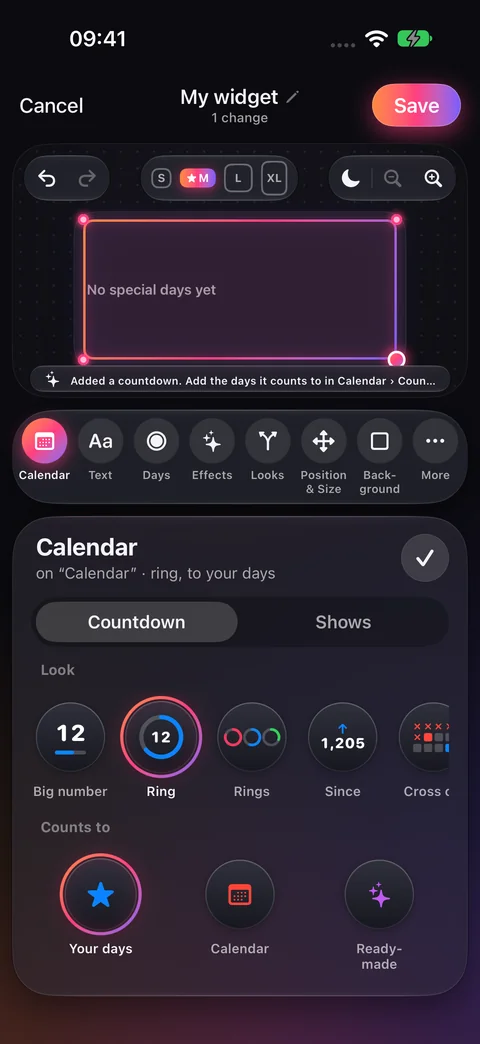
Choose the date source#
- Your days
- Use the shared Special days list. Choose the next day or a specific saved day.
- Calendar
- Count to an upcoming Calendar event. Choose calendars, include or exclude all-day events, and optionally filter by a word in the event’s title. This source looks up to 60 days ahead.
- Ready-made
- Choose built-in dates, such as New Year, Christmas, or the next season. No Special day needs to be added.
Choose a look#
Under Calendar → Countdown → Look, choose a design. Options include Big number, Ring, Rings, Since, Cross off, List, Timeline, Flip board, Photo, Birthdays, and Repeating.
Since uses days set to count since a date. Rings shows several upcoming days; How many lets you choose the count. Photo offers a picture behind the countdown. The available settings change with the look.
Set the time units#
Select the countdown, open Calendar → Countdown, and find Counts in in that panel. Choose the units it offers. On Flip board, this control is called Tiles. Scroll inside the panel if the control is lower down.
For an hours-based countdown, give your Special day a time. Without a time, it counts to the start of that day. The app offers a link to edit the day when its time is missing.
If no day appears#
A new countdown using Your days has nothing to count to until you add a Special day. Add one from the countdown’s controls or from Library → Special days. A Since design needs a day set to Since it.
Checked against the app · October 6, 2026.
Screenshots use example data or the app’s test image.