
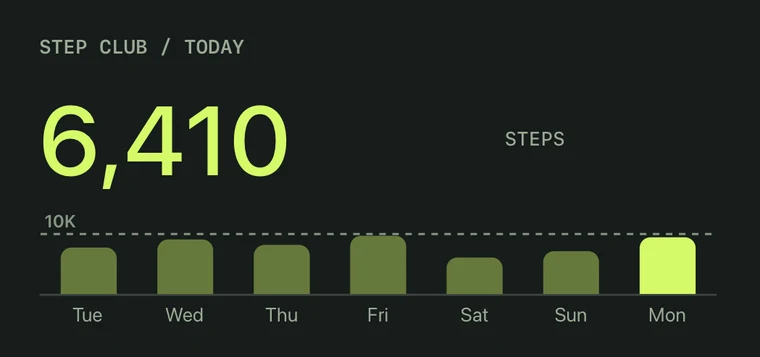
01 / HEALTH & ACTIVITY
Steps, sleep & the rest.
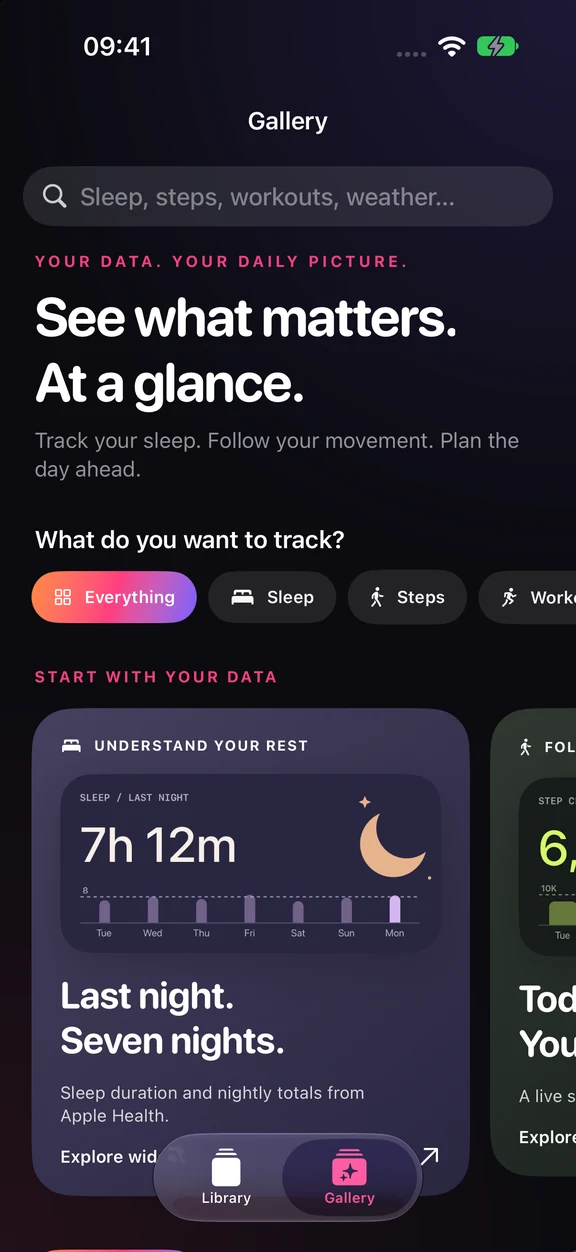
Steps, sleep, Activity rings, and workout history from Apple Health. Choose what you want to see.
Make a step counter widgetCUSTOM WIDGETS FOR YOUR IPHONE
Your calendar. Your steps. The weather outside.
Build a widget around your day, then make every detail your own.
Start with a Gallery design, or a blank canvas.
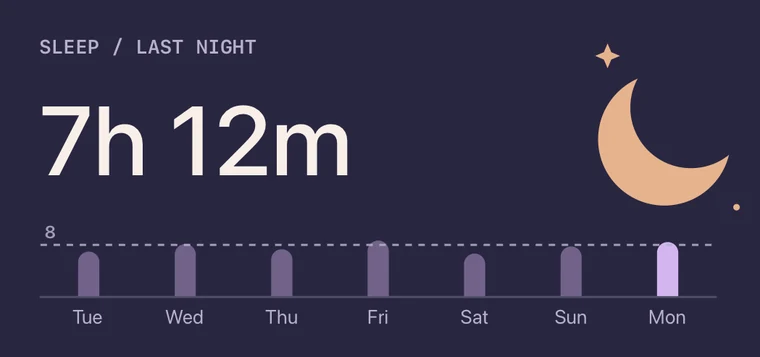
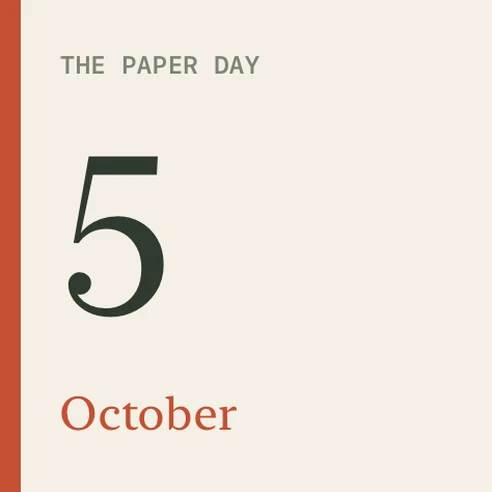
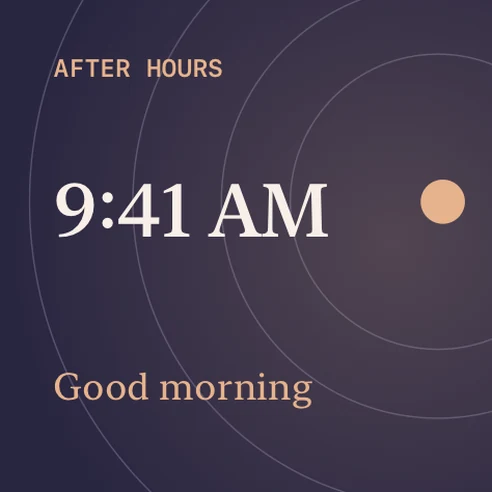
Widget previews show example data.
FROM THE GALLERY
Real designs from the app.
Every one is yours to edit.
01 / HEALTH & ACTIVITY
Steps, sleep, Activity rings, and workout history from Apple Health. Choose what you want to see.
Make a step counter widget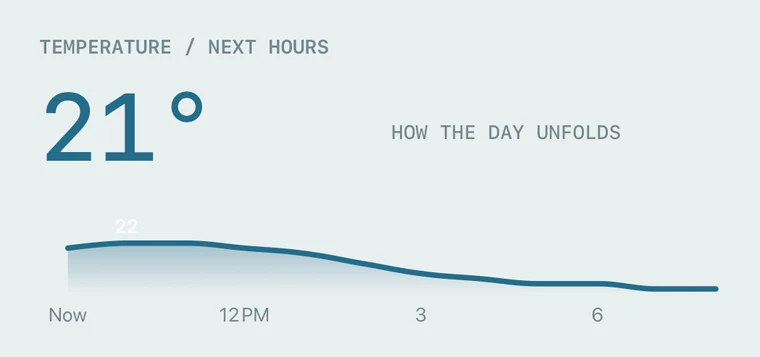
02 / WEATHER
Temperature, conditions, and forecasts. Give the weather a place on your Home Screen.
Make a weather widget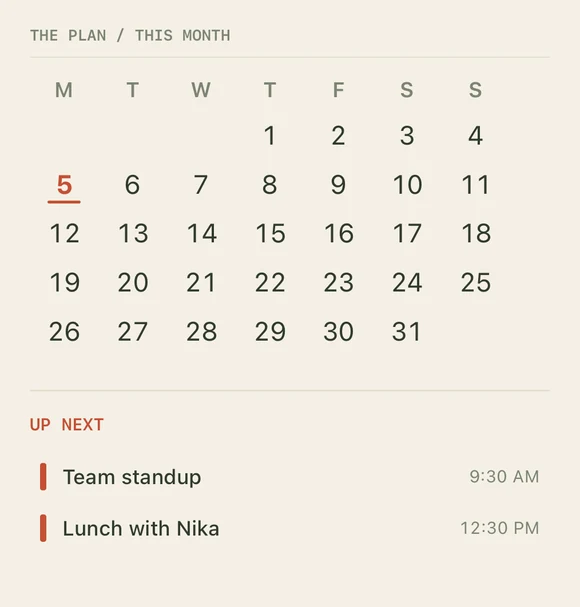
03 / CALENDARS & EVENTS
A month calendar and the events coming next. Put your plans where you’ll see them.
Make a calendar widgetGallery previews use example data. Your saved widgets use the data sources you allow.
THE EDITOR
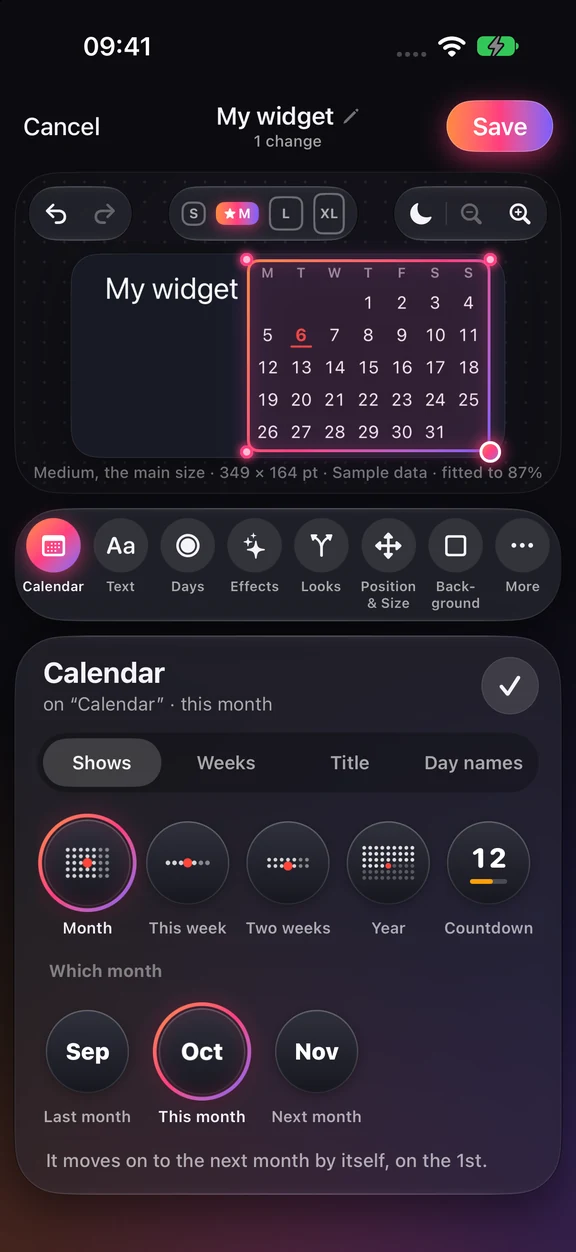
Change the type. Move a layer. Swap the data. The Gallery gives you a starting point; the editor lets you change it.
Pick a color and size, then tap Add to Library.
Open the visual editor and change the text, colors, layout, or data.
Save, add a widget to your Home Screen, then choose your design under Content.